How to use Dashmor

Every part of Dashmor, a few steps each, next to the real screen. The screens are from the live demo, a made-up sample firm.

Get started

Connect your ERP once. Everything else builds on it.

Connect your ERP

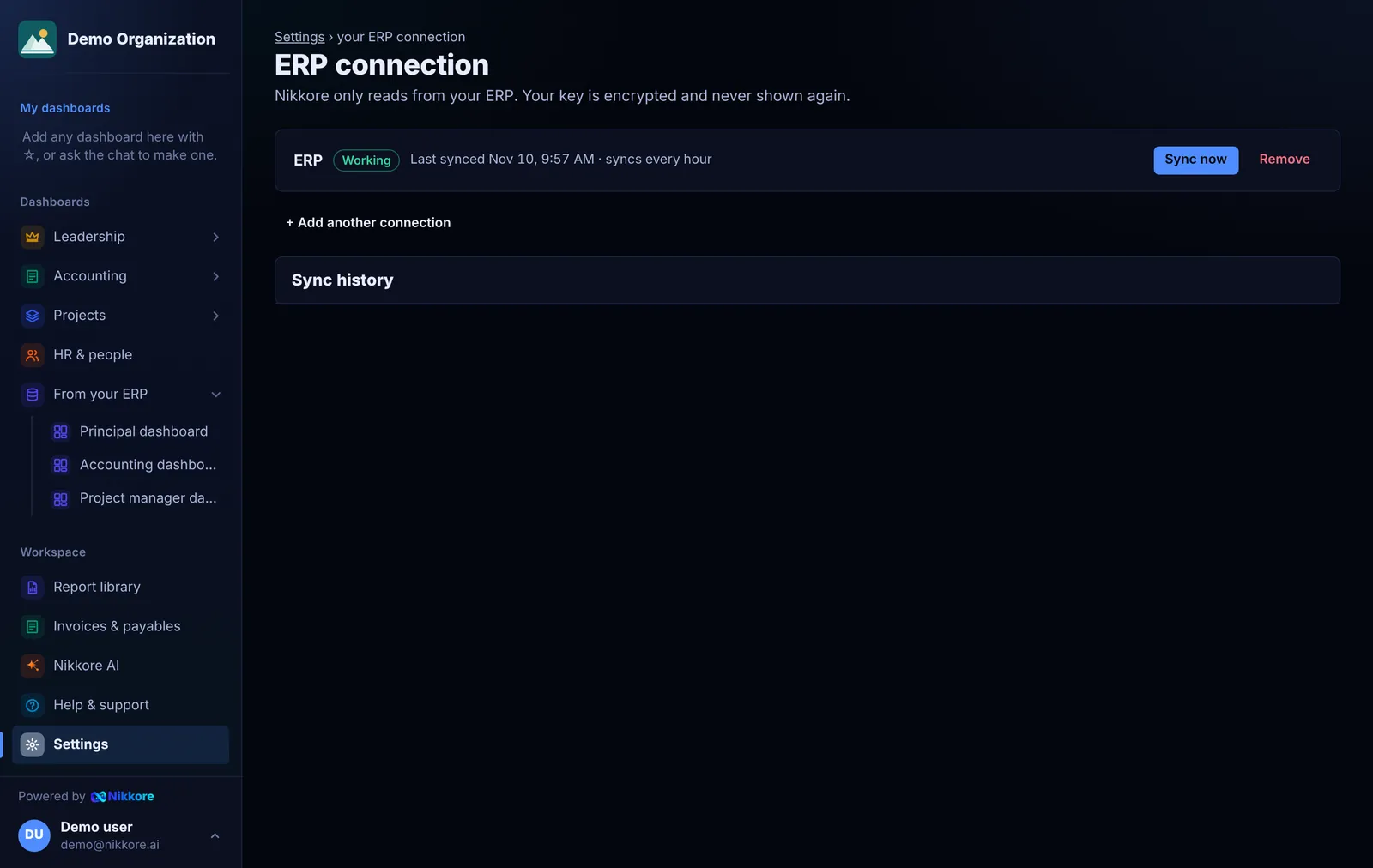
Create a read-only API key in your ERP and paste it into Dashmor. The setup screen shows each click with pictures and checks the connection for you.

  1. Open Settings › Connection and choose your ERP
  2. Follow the pictures to create a read-only key and paste it
  3. Select Check my connection, then sync and watch it reach 100%
Read the full guide
app.dashmor.ai
Connect your ERP

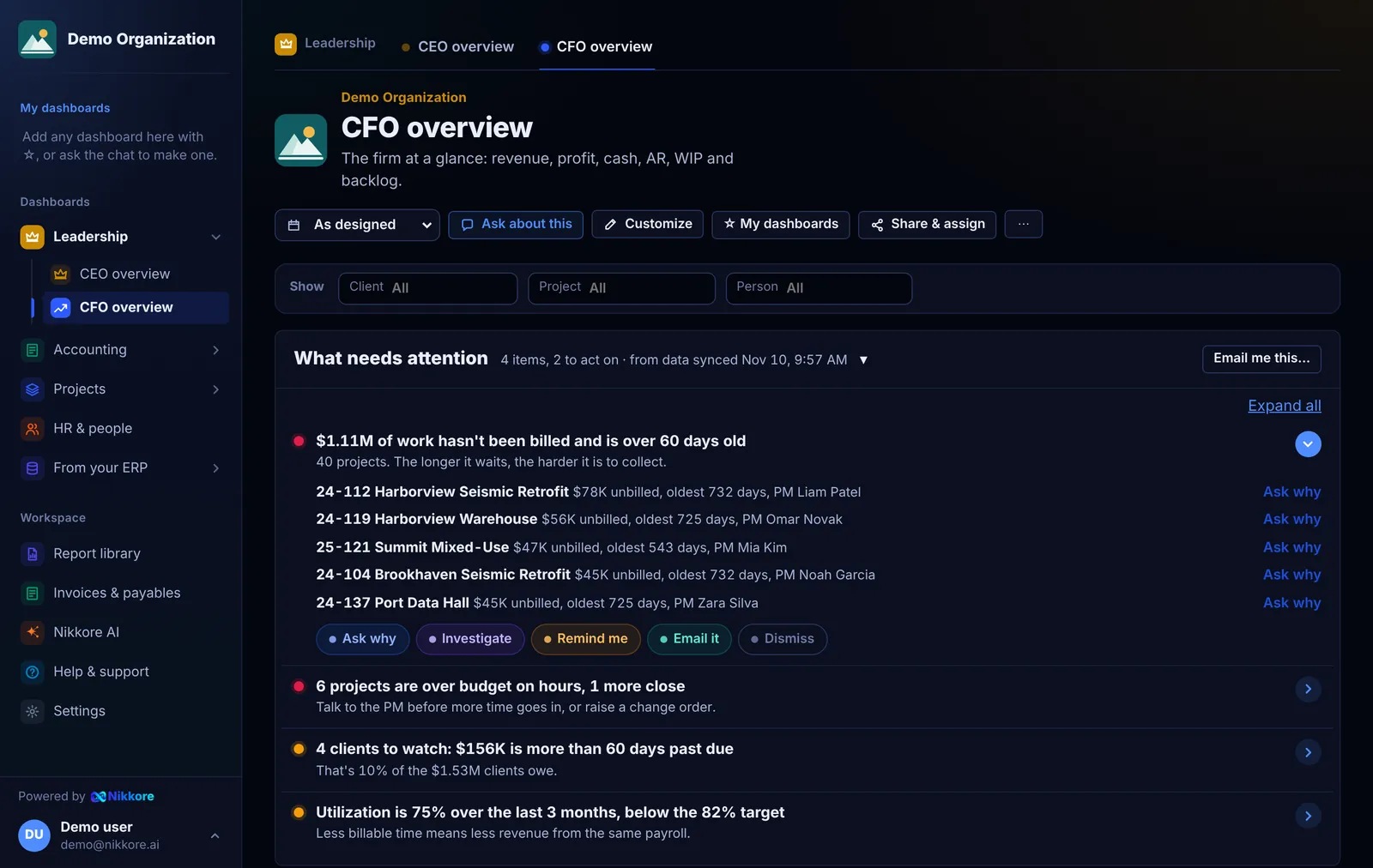
Bring in your ERP dashboards

Connect your ERP and your dashboards appear by themselves, sorted into the right part of the menu, with an AI version of each ready to compare. Nothing changes until you approve.

  1. Connect your ERP; your dashboards come in after the first sync
  2. Open one and select See the AI version
  3. Approve it, adjust it, or keep the original
Read the full guide
app.dashmor.ai

Dashboards

Ready on day one, and yours to change.

Change the period

Every dashboard has one period picker. Change it and all tiles update together.

  1. Open any dashboard
  2. Choose a period at the top right
  3. Select a tile to see the rows behind its number
Read the full guide
app.dashmor.ai
Change the period

Change a tile

Pick what a tile shows, how it's drawn, its color and its period. Each save is a version you can switch back to.

  1. Select Edit on the dashboard
  2. Click the tile you want to change
  3. Pick the metric, chart and color, then Save
Read the full guide
app.dashmor.ai
Change a tile

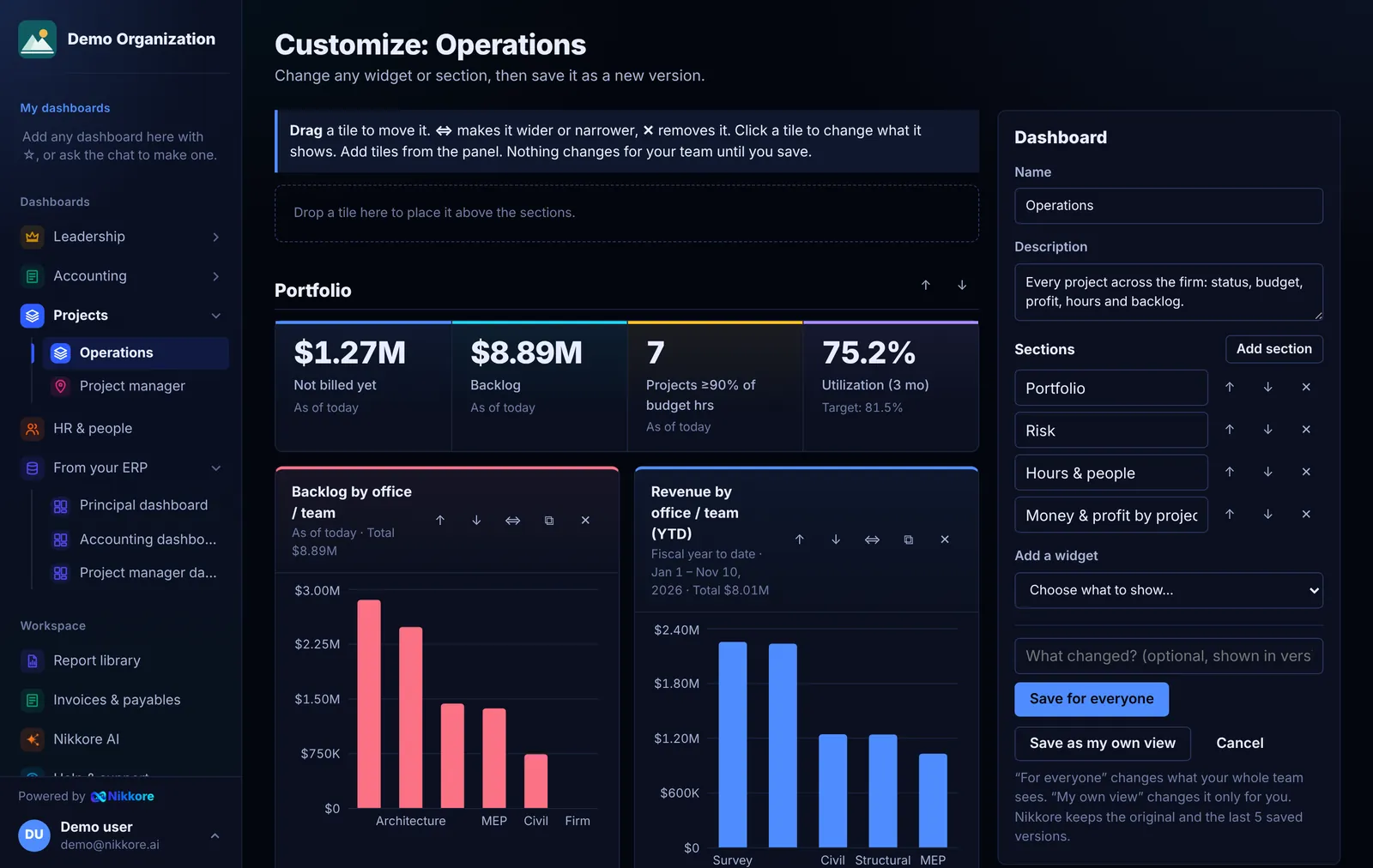
Rearrange with drag and drop

In edit mode, drag a tile anywhere on the dashboard, even into another section. Your team sees the new layout after you save.

  1. Select Edit
  2. Drag a tile by its handle to a new spot
  3. Save when the layout looks right
Read the full guide
app.dashmor.ai
Rearrange with drag and drop

Ask Dashmor

Questions in plain English, answers from your own numbers.

Ask a question

Ask the way you would ask your controller, from any page. Dashmor gives the answer first, then what's behind it and what's worth watching, from your firm's own numbers.

  1. Select Ask Dashmor at the bottom right of any page
  2. Type a question, like “What needs attention?”
  3. Pin the answer, share it with a team, or have it emailed every morning
Read the full guide
app.dashmor.ai

Invoices & payables

Know what's late and what to do next.

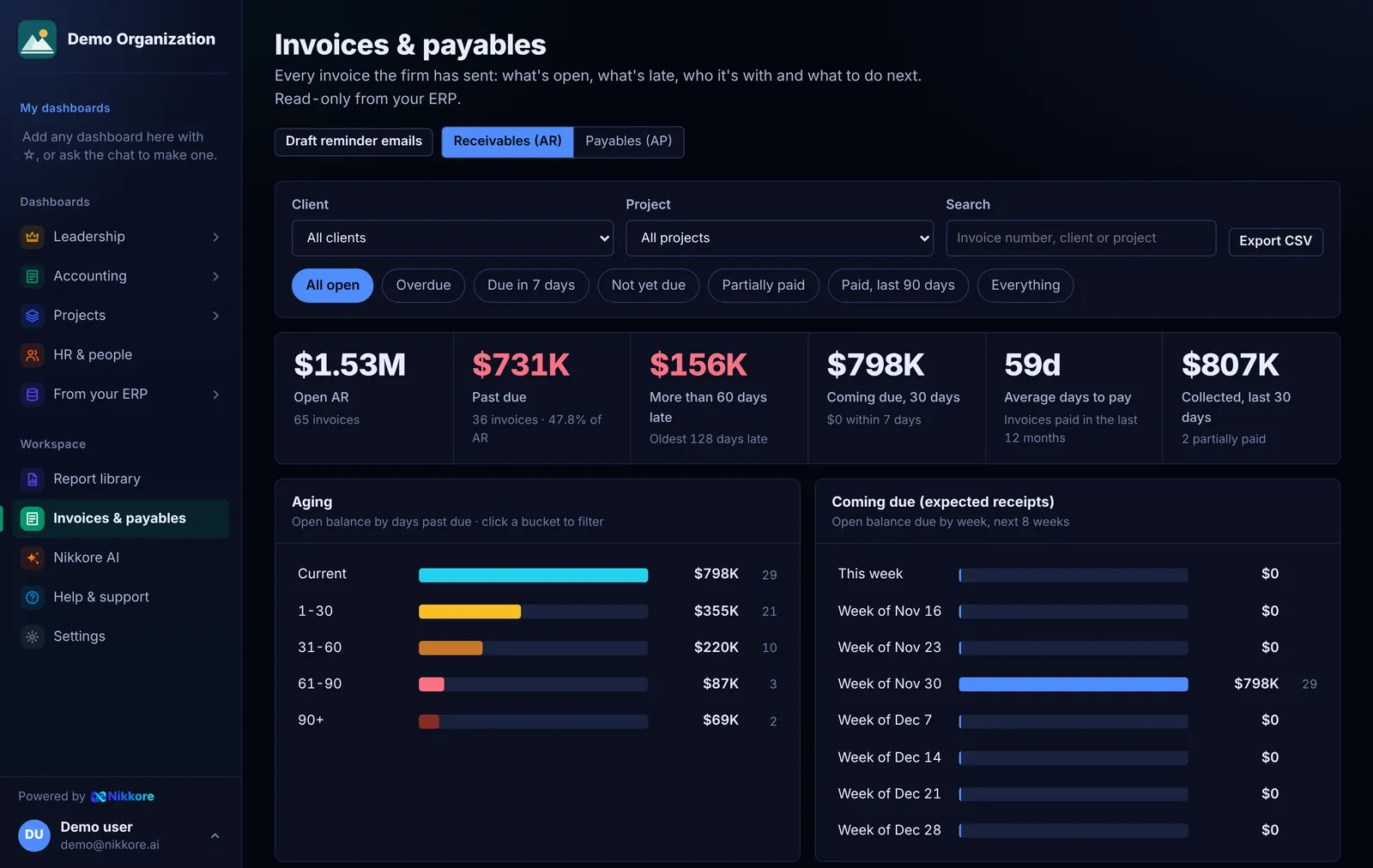
Work the aging

Click any part of the aging bar to see those invoices, each with a suggested next step.

  1. Open Invoices & payables
  2. Click an aging bucket, like 31–60 days
  3. Follow the next step shown on each invoice
Read the full guide
app.dashmor.ai
Work the aging

Automations

The numbers come to you.

Schedule a report

Get the morning list of what needs attention, or send any dashboard by email on a schedule, with the full snapshot (numbers, charts and tables) right in the email and an optional PDF copy. Narrow it to one project, client or project manager.

  1. Open Dashmor AI › Automations and select New automation
  2. Pick a ready-made one, or the dashboard, what it covers and when
  3. Choose who gets it and save
Read the full guide
app.dashmor.ai

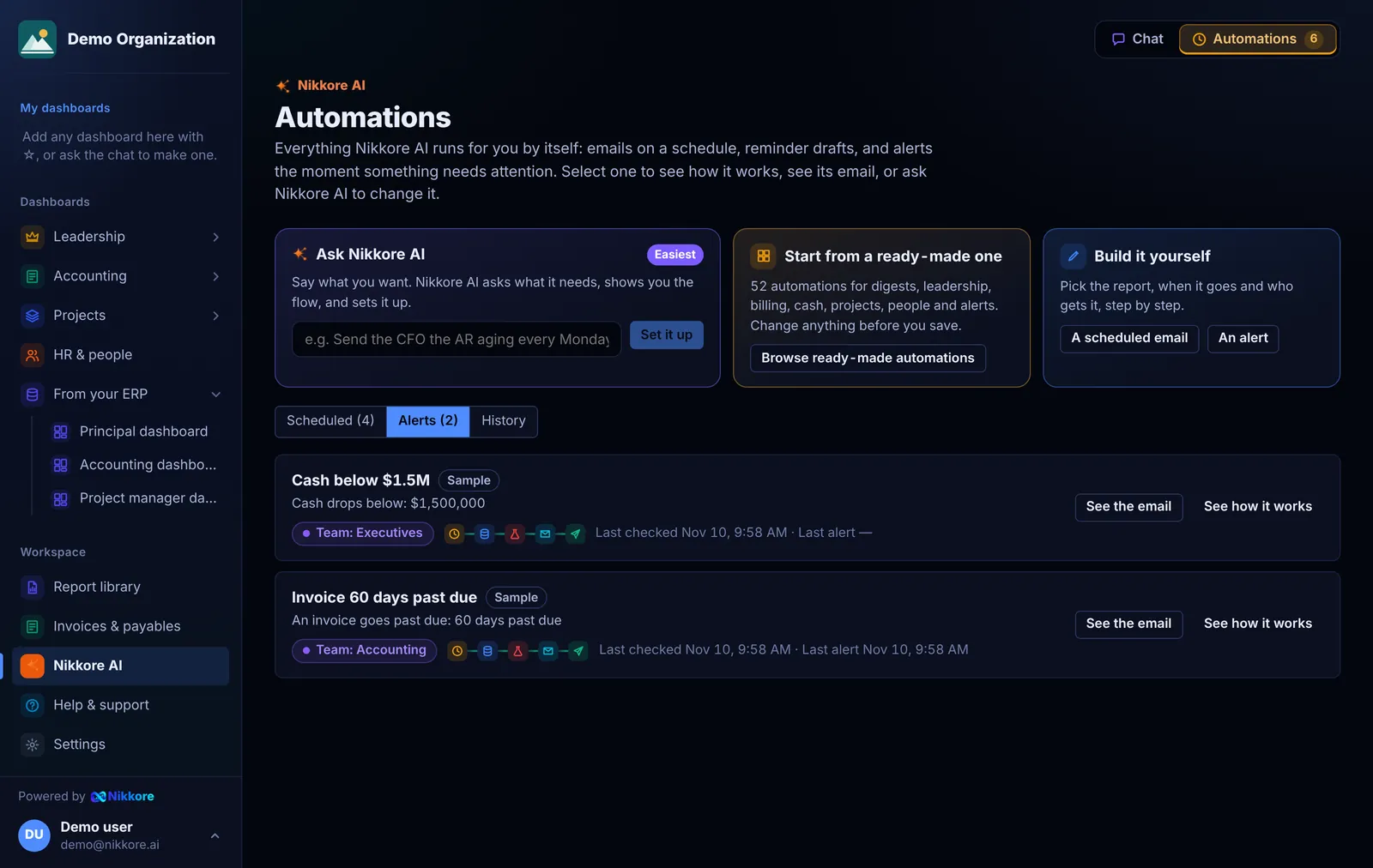
Get an alert

Hear the moment an invoice goes 60 days late, a project passes 90% of its hours, or cash drops below a line.

  1. Select New alert and pick what to watch
  2. Set the line and who to alert
  3. Select Check now to see today's matches, then save
Read the full guide
app.dashmor.ai
Get an alert

Team & sharing

Bring in the whole firm, with the right access.

Invite people and set access

Everyone gets sensible defaults, or follow your ERP: people see only the projects their ERP access covers, and are switched off when your ERP switches them off.

  1. Open People and select Invite
  2. Pick a role: admin, member or viewer
  3. Turn individual areas on or off for that person
Read the full guide
app.dashmor.ai

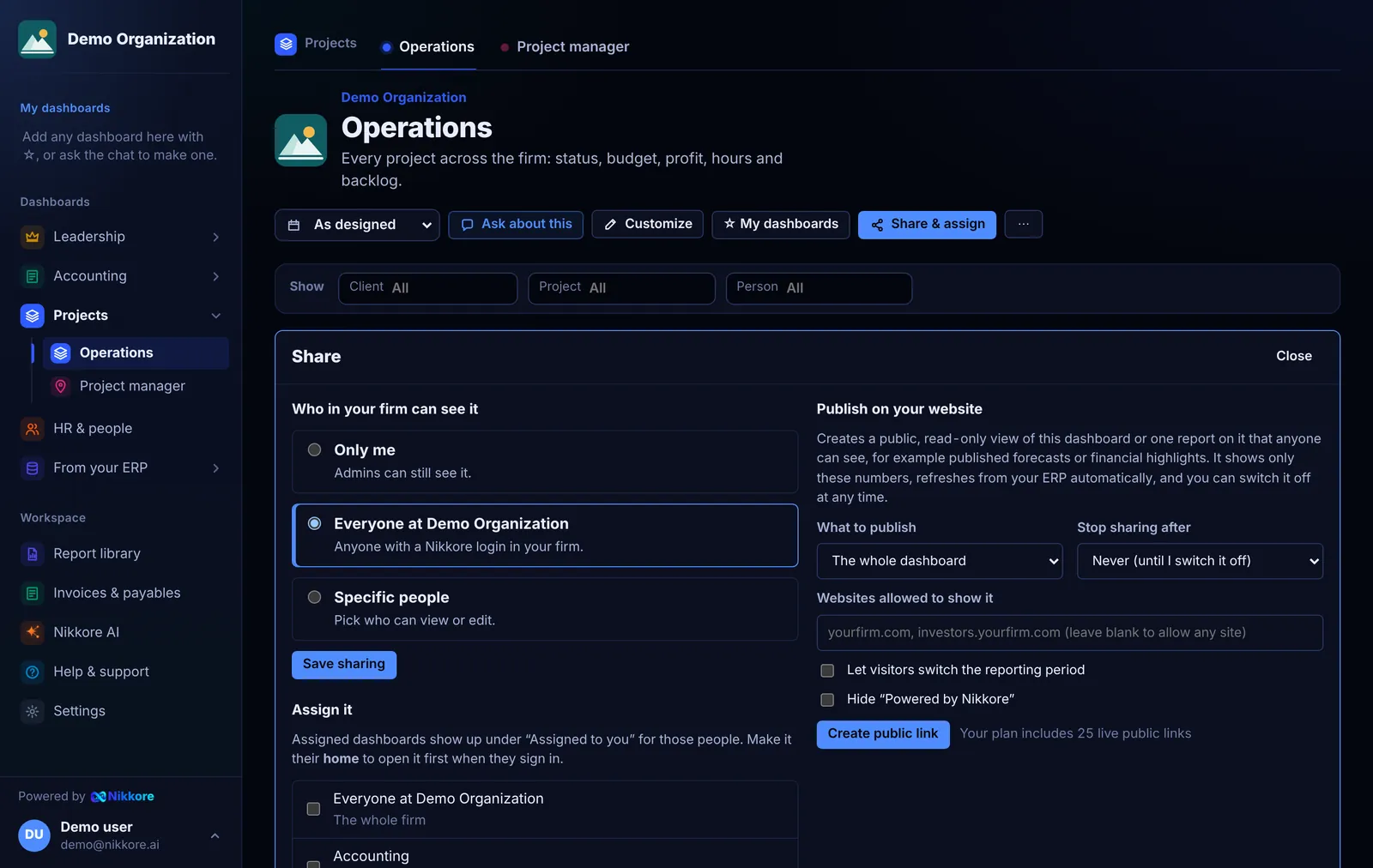
Share and publish

Share a dashboard with a team or the whole firm, or publish one report on your own website.

  1. Open a dashboard and select Share
  2. Choose who can see it
  3. Turn on Publish to get embed code limited to your domain
Read the full guide
app.dashmor.ai
Share and publish

Try it on the sample firm.

Ask questions, build a dashboard and set up an automation on a sample firm. No account needed.