
Your ERP dashboards, redesigned
Dashmor reads the dashboards your team already uses in your ERP (the reports and charts on them) and brings each one in, designed to read at a glance. Everything happens in Dashmor; nothing is ever written back to your ERP.
Automatically, when you connect
Your ERP dashboards come in by themselves after a sync, and any you add in your ERP later come in on a later sync (Dashmor checks every few hours).
- All in one place. They sit together in the menu under From your ERP, folded, so the role dashboards (CEO, CFO, Accounting, Operations, Project manager, HR) stay easy to find. On any of them, the others are tabs at the top of the page.
- Every report kept, laid out properly. Each report from the ERP dashboard stays, under the name you know from your ERP and in your ERP's own sections. Dashmor puts the numbers to act on first, then charts in pairs, then the lists you work through (open invoices, projects over budget, the income statement). Rankings and trends, like hours by project or unbilled work by project, become charts; the rows behind any chart are one click away. Any report Dashmor can't show yet is listed at the top.
- The exact your ERP layout is kept. Select See it as in your ERP to compare side by side, or switch to it.
- Don't need one? Admins select Don't need it at the top of the dashboard (or ⋯ › Remove this dashboard). It's removed from Dashmor only, and it doesn't come back on the next sync. Your ERP isn't affected.
- Move it to another part of the menu with ⋯ › Where it sits in the menu, or select Redesign with AI for a different layout.
Just for me, a team, or everyone
Changing a dashboard (by redesigning it or editing it yourself) never has to change it for your team.
- Use it just for me: your own view. Everyone else keeps the default. Back to the default returns you to what everyone sees.
- Use it for a team (admins): pick a team, such as Project managers. Everyone on that team sees this version; everyone else keeps the default. Under Versions, back to default undoes it for that team.
- Use it for everyone (admins): it becomes the firm's default.
Someone's own view wins over their team's view, which wins over the firm's default.
Dashmor checks for new your ERP dashboards after syncs (every few hours). A dashboard you removed from Dashmor isn't brought back. Bringing dashboards in never sends an email to anyone.
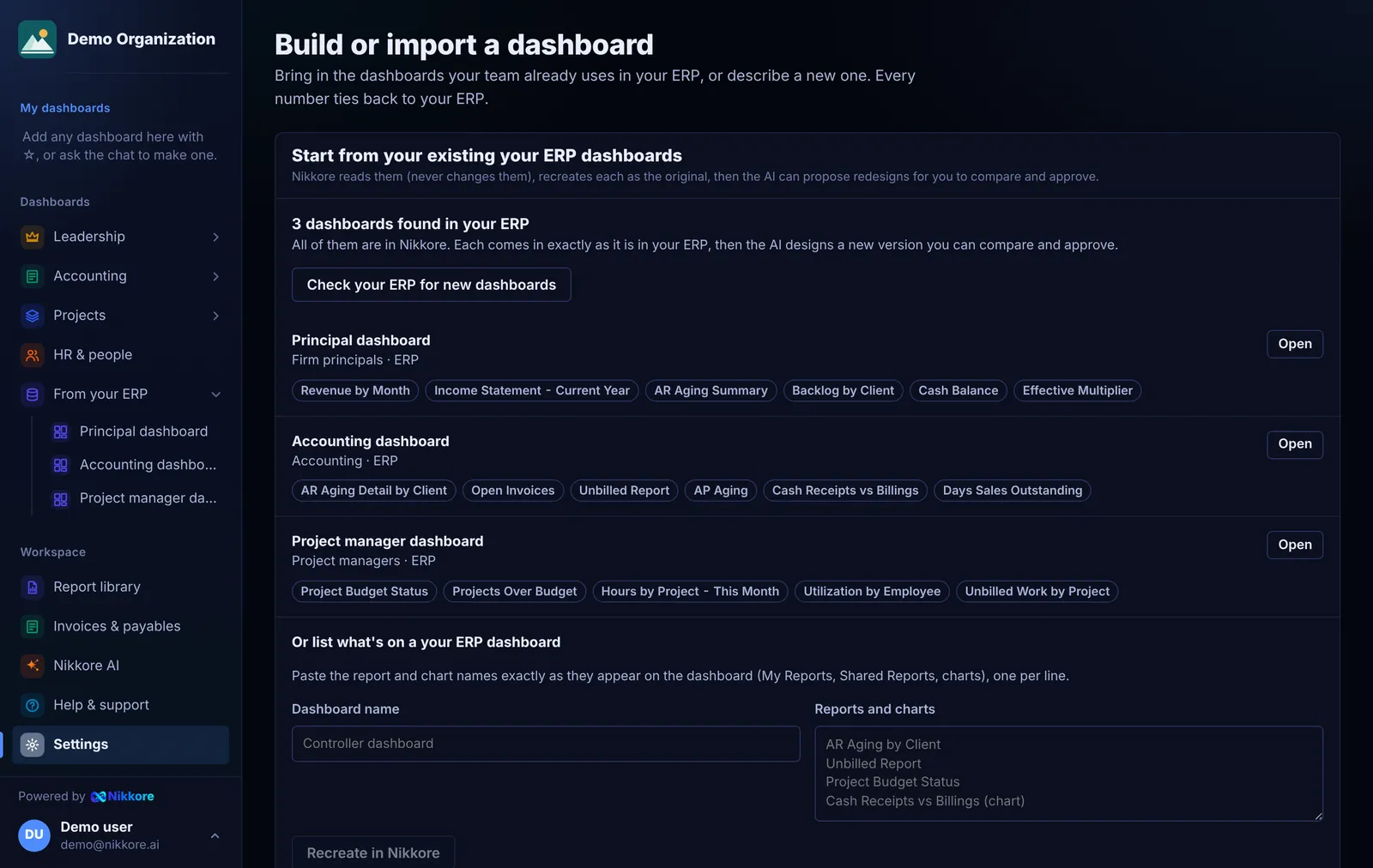
Bring a dashboard in
- From your connection: dashboards listed by your ERP dashboards endpoint appear under Start from your existing your ERP dashboards. Select Bring into Dashmor.
- By listing the reports: paste the report and chart names from the ERP dashboard, one per line, and select Recreate in Dashmor.
Imported dashboards appear under From your ERP in the menu. Any report Dashmor can't reproduce yet is listed as not yet available.
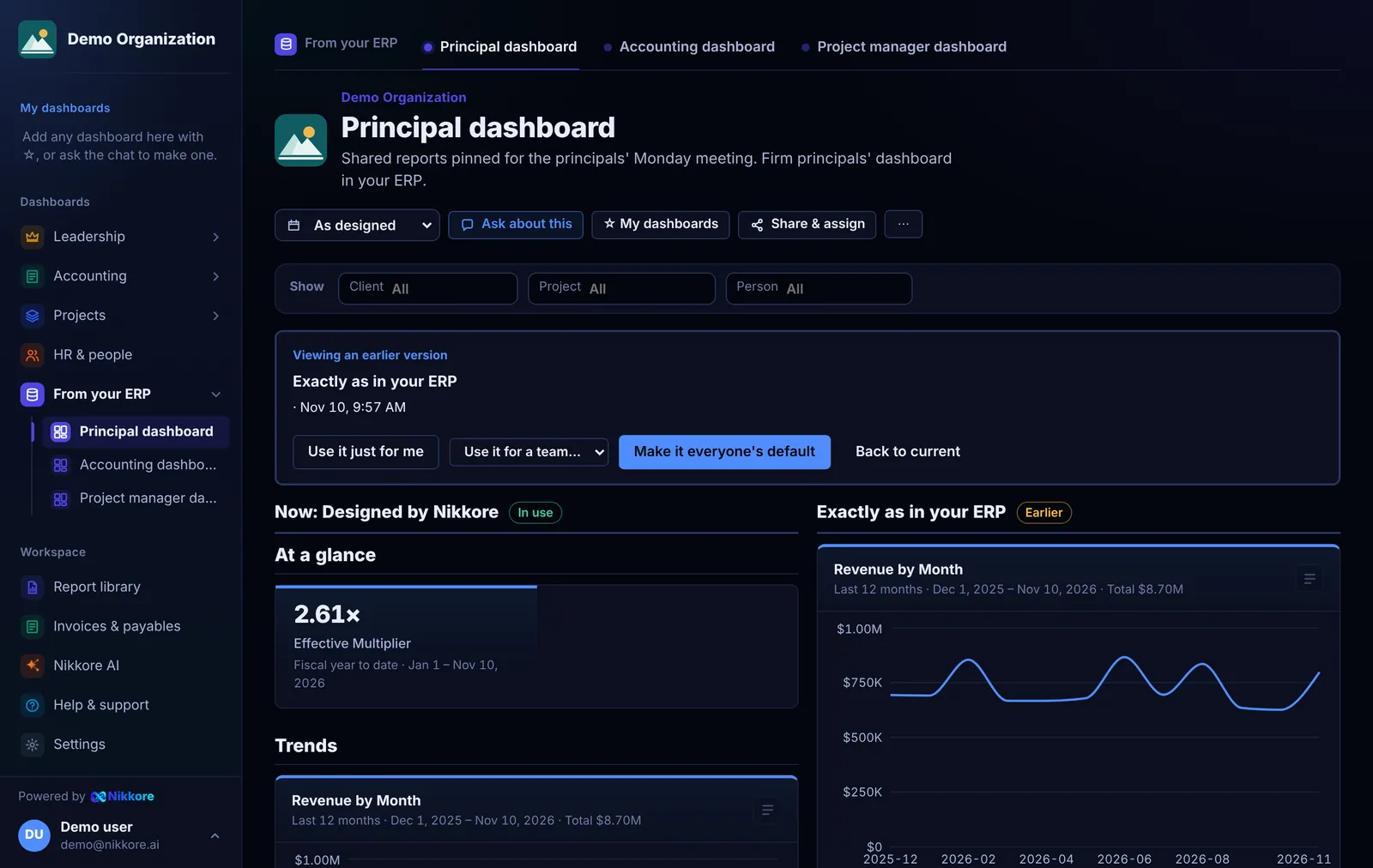
Redesign, preview, approve
- Open the dashboard and select Customize › Redesign with AI. Choose the whole dashboard or just one section, and optionally say what to focus on, for example "one-glance view for the principals, collections first".
- Dashmor opens the first option as a preview. Switch between options such as Executive view and Action list; each one explains what changed.
- Compare side by side with the version in use.
- Approve and use it, or Adjust before approving to change anything first. Everyone then sees it.
- Changed your mind? Open Versions and select Use this version on any earlier one.
The sidebar badge shows how many proposals are waiting for review.
Bring them all in at once
Dashmor reads your ERP dashboards through the same endpoint as everything else: each dashboard, its sections, what's on it, and which ERP groups it's assigned to. (After this was added, paste the latest Dashmor query in your ERP once.)
- Open Settings › Build or import a dashboard.
- Select Bring them all in and design new versions. Dashmor brings each dashboard in exactly as it is in your ERP (the Original), in your ERP's sections, then the AI designs a new version of each. You see each step while it works, about 30 seconds a dashboard.
- Open any dashboard to compare the original with the new version, side by side if you like. Approve the one you want; you can switch back any time under Customize › Versions.
If a Dashmor team has the same name as the ERP group a dashboard is assigned to, that team gets the dashboard in Dashmor too.
Filter any dashboard
The Show bar at the top of every dashboard narrows it to one client, project or person. If you can edit the dashboard, select Save this filter with the dashboard: everyone who opens it then sees it that way. That's how to make, say, a dashboard for project 25-147 and share it with that project's team.