
Sharing and embeds
Select Share on any dashboard.
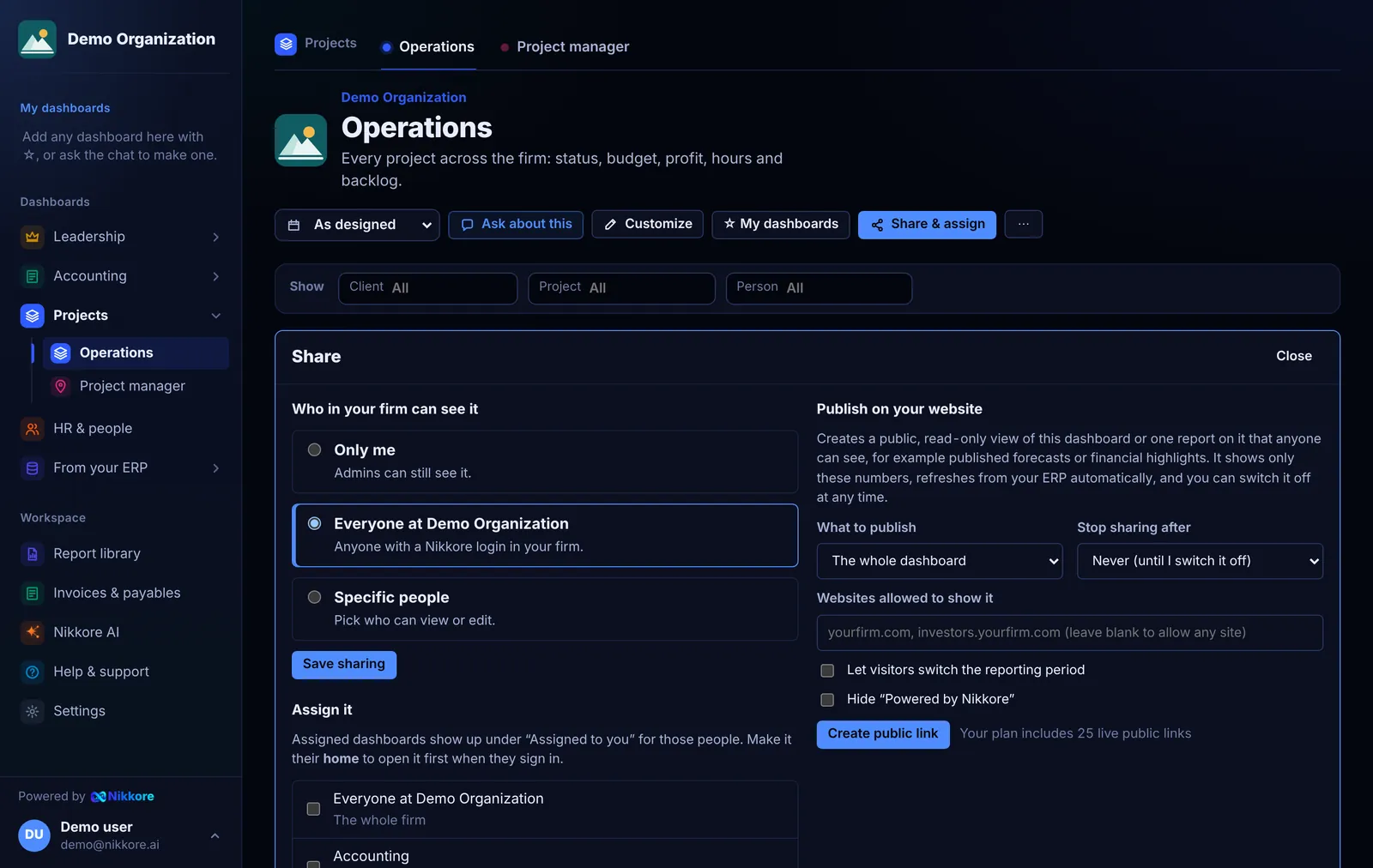
Share with your team
Choose who in your firm can see it:
- Only me: private to you. Admins can still see it.
- Everyone at your firm: anyone with a Dashmor login in your workspace.
- Specific people: pick colleagues or whole teams and set each to Can view or Can edit.
Standard dashboards and imported your ERP dashboards are shared with everyone by default.
Assign a dashboard
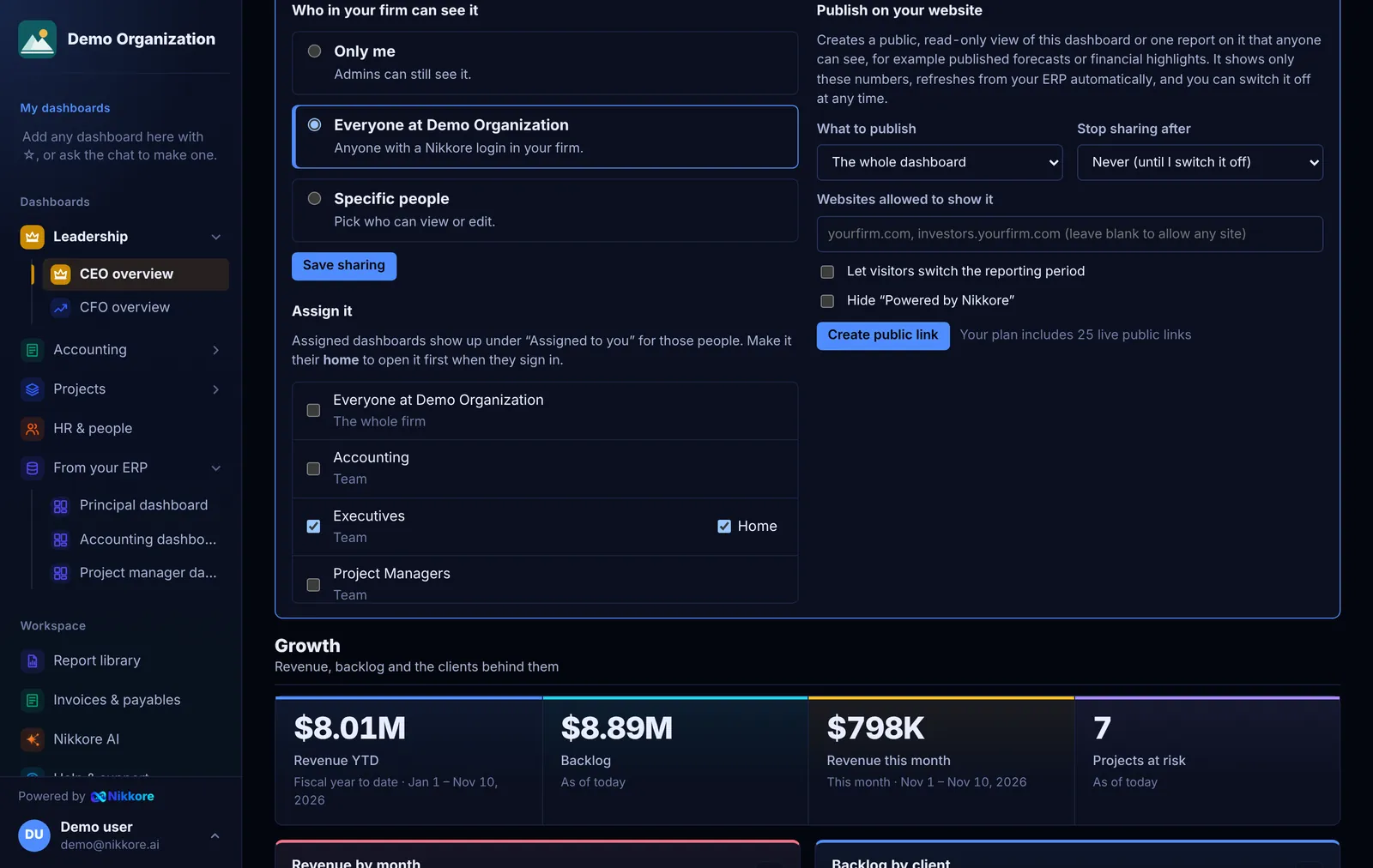
Under Assign it, tick the whole firm, a team or a person. The dashboard then appears at the top of their sidebar under Assigned to you, even if it's otherwise private. Tick Home to make it the page they land on when they sign in. A person's own home beats their team's, which beats the firm's.
Admins and the dashboard's creator can assign dashboards.
Publish on your website
Admins can publish a dashboard, or a single report on it, as a public read-only view that updates by itself from your ERP. For example:
- Investors and the board: revenue, net income and backlog on your investor page.
- Clients: a project's budget, hours and billing status in a client portal.
- Banks and partners: the numbers they ask for each quarter.
- Your intranet: utilization and backlog on a SharePoint page or the office screen.
- In Publish on your website, choose the whole dashboard or one report.
- List the websites allowed to show it (for example
yourfirm.com). Leave it blank to allow any site. - Optionally let visitors switch the reporting period, and set an end date.
- Select Create public link, then Copy embed code and paste it into your website. The snippet sizes itself to the report.
What a public view shows:
- Only the numbers on the dashboard or report you chose, refreshed automatically from your ERP.
- Nothing else from your workspace: no other dashboards, no invoice detail, no sign-in.
- Your firm's logo at the top (see Your logo, AI and account).
- Powered by Dashmor at the bottom, unless you tick Hide “Powered by Dashmor”.
You can Switch off a public link at any time; it stops working immediately. View counts are shown on each link, and every publish and switch-off is recorded in Settings › Activity.