
People & access
Dashmor is open by default: everyone you invite can use the app straight away. An admin can then narrow any person, a whole role, or a team to exactly what they need. Open People & access in the sidebar (owners and admins).
Roles
| Role | What they can do |
|---|---|
| Owner | Everything, including billing and transferring the firm. One per firm. |
| Admin | Everything: people, roles and access, your ERP connections, billing, publishing reports to websites. |
| Member | Uses every part of the app: dashboards, invoices & payables, chat, the builder, your ERP connections, the data catalog and firm settings. Edits and shares dashboards. Can't manage people or billing. |
| Viewer | Read-only. Views dashboards and invoices shared with them and can ask Dashmor questions. Can't edit or create. |
Change someone's role from the Role list on their row. To hand over the firm, the owner selects Make owner on an admin; the old owner becomes an admin.
Set a person's access
Select Set access on a member or viewer:
- Parts of the app: tick the sections they can open, for example only Standard dashboards and Invoices & payables.
- What they can do: edit dashboards, ask Dashmor, use the AI builder, AI redesigns, share and assign dashboards, publish to a website, export data.
- Dashboards they see: all dashboards shared with them, or only the ones you pick (plus any they create themselves).
Select Save access. Changes apply immediately, even if they're signed in. Use role default removes the custom settings.
Defaults for each role
Under Defaults for each role, change what every member or viewer gets unless they have custom access. Reset to Dashmor defaults restores the original settings.
Teams
Create teams such as Project managers or Accounting and add people from their row. You can then share or assign a dashboard to the whole team at once. See Sharing and embeds.
Invite, turn off, remove, reset
- Invite: name, email, role and a temporary password. Share the sign-in with them; they change the password under My account.
- Turn off: signs the person out and blocks sign-in, without deleting anything they made. Turn on restores access.
- Remove: deletes the person's Dashmor account for good, so you can add them again later with the same email. Their own scheduled reports stop.
- If Dashmor says an email is already in use, it tells you whether that person is already in your firm (look for them in the list, maybe turned off) or has an account at another firm (write to support@dashmor.ai and we'll free it up).
- Reset password: creates a new temporary password.
Every change is recorded in Settings › Activity.
What viewers, members and admins can do
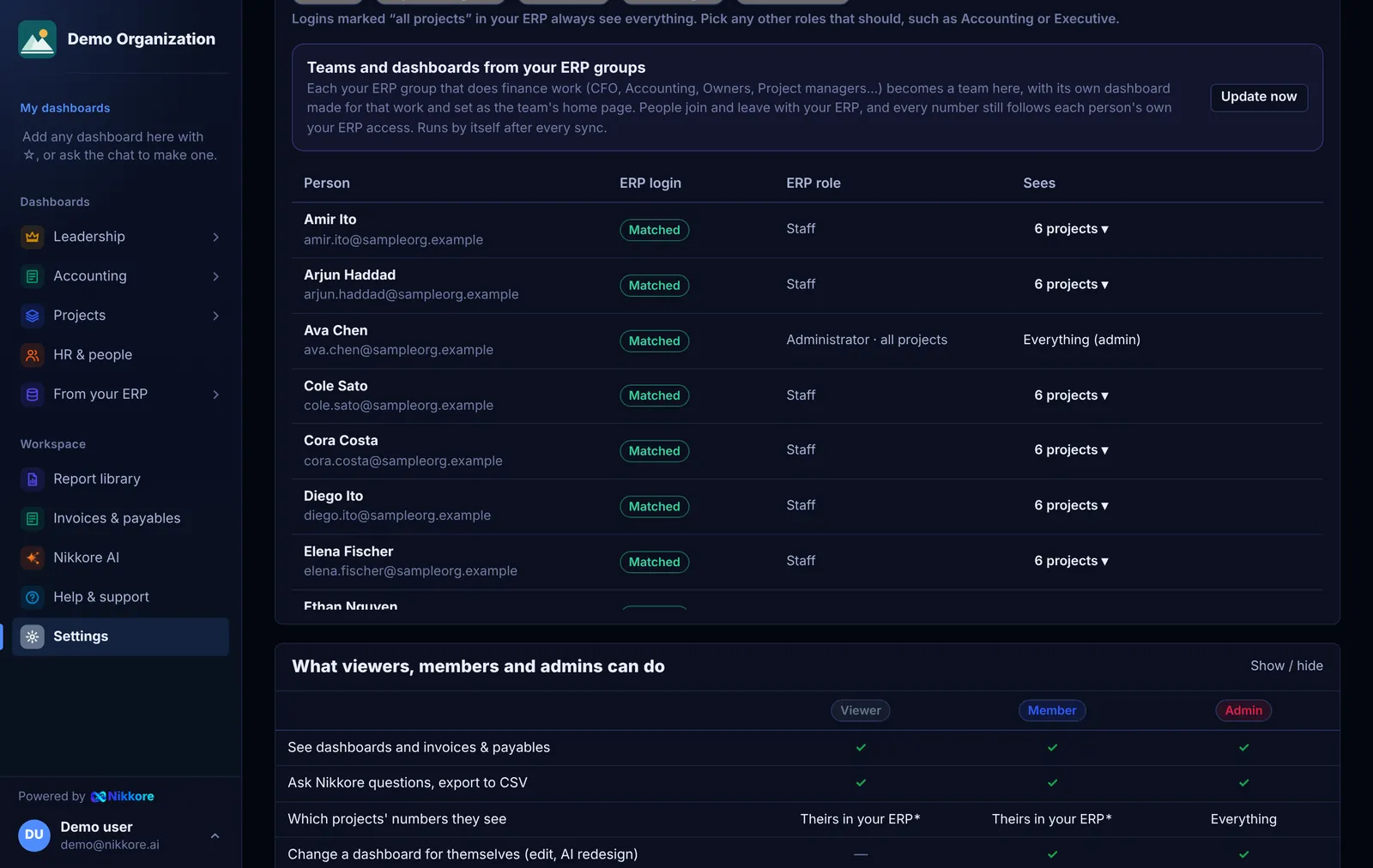
People & access shows a table comparing the three roles. In short:
- Viewer: looks at dashboards and invoices & payables, asks Dashmor questions, exports to CSV. Can't change anything.
- Member: everything a viewer does, plus changes dashboards for themselves (editing or AI redesign), builds and shares new dashboards, schedules reports and alerts, and uses the ERP connection, data catalog and firm settings. Changes a dashboard for everyone only if they made it.
- Admin: everything, including inviting people, changing roles and access, changing any dashboard for a team or everyone, publishing to a website, and plan & billing. Admins always see every project.
To add another admin, choose Admin in the person's Role in Dashmor, or when you invite them.
What each person can do in your ERP
The In your ERP column shows, for each person, their ERP role, how many projects they can see (or all projects), the ERP modules they can open (for example Project Management, Human Resources, Accounts Receivable) and their ERP groups. It also says which Dashmor role fits: your ERP admins fit Admin; people with accounting, billing or project management access fit Member; everyone else fits Viewer. Select Make member (or admin, or viewer) to use it.
When you invite your ERP users who aren't in Dashmor yet, choose The role that fits their ERP access to give each person their fitting role at once.
Modules and groups come from the latest Dashmor query in your ERP. If the column shows a role but no modules, paste the latest query from your ERP connection.
Teams and dashboards from your ERP groups
After every sync, each ERP group that does finance work becomes a team in Dashmor, with its own dashboard as the team's home page:
- CFO, Owners, Principals, Executives: the firm at a glance (revenue, profit, cash, backlog, projects at risk).
- Accounting, Billing: what to bill, collect and pay (aging, DSO, unbilled work, open invoices, bills coming due).
- Project managers: their projects (budget, profit, hours, unbilled work).
- HR, Resources: hours and utilization by person.
Groups everyone is in (like Employees) are skipped. People join and leave these teams as they do in your ERP. Every number on these dashboards still follows each person's own your ERP access. If you remove one of these dashboards, Dashmor doesn't make it again. Select Update now under Users and permissions from your ERP to run it right away.
Who sees what, 100%
Members and viewers only ever see the projects their ERP access covers: on dashboards, in invoices & payables, in search and filters, in Ask Dashmor and in scheduled reports. If someone asks Dashmor about a project they can't see, Dashmor tells them it isn't part of their ERP access and says nothing about it. Until Dashmor has read your firm's your ERP permissions, members and viewers see no project data at all. Admins always see everything.