
Ask Dashmor
Select Ask Dashmor at the bottom right of any page. The chat opens beside the page, so you can keep looking at your dashboard while you ask. The buttons at the top of the chat, from left to right: New conversation (pencil), Make wider (panel with an arrow; select it again to make it narrower), Full screen with your past chats (four arrows), and Hide (down arrow). Point at any button to see its name. Your conversations are kept, so you can ask follow-ups.
What needs attention
When you open the chat, Dashmor starts with the top few things to look at today. The full list is at the top of the CFO overview:
- Work that's done but hasn't been billed for more than 60 days
- Active projects that are losing money, or are over (or close to) their budgeted hours
- Clients to watch: invoices more than 60 days past due, or one client owing a large share of everything
- Cash that dropped since last month, or bills due soon compared with cash on hand
- Utilization below your target
Red means act now, amber means watch. Select Ask or Ask why on any line and the chat answers with the detail.
Select any item to open or close it (or Expand all). Under an open item:
- Ask why: the chat explains it.
- Investigate: a deeper look: what's going on, why, and a 30/60/90-day plan, saved as a small dashboard you can keep.
- Remind me: tomorrow morning, in 3 days, next Monday, or a day you pick. It leaves your list until then, and you get an email at 8:00 AM that day.
- Email it: send it to yourself or to people in your firm, with a message. Their replies come straight to you.
- Dismiss: say why (already handled, not accurate, or not important right now). If it's not accurate, write what's wrong: Dashmor's AI remembers your correction for everyone at the firm. A dismissed item comes back by itself if something new shows up in it, such as another client going past due.
Dismissing and reminders are just for you. Show dismissed or snoozed at the bottom of the list brings any of them back. Select Email me this every morning to get the list each weekday at 7:00 AM. Each person only hears about the clients and projects your ERP lets them see, and cash and bills only go to people who see the whole firm.
The Chat page
Chat in the menu opens a full page to talk to Dashmor. A new chat starts in the middle of the screen with the box to type in and ideas to try, grouped into Ask, Build and Automate. Once you ask, the conversation reads top to bottom with the box at the bottom. Press Enter to send and Shift+Enter for a new line.
Your conversations are on the left, each with a short name, grouped by Today, Yesterday, Previous 7 days and so on. Use Search chats to find one. On any conversation, ⋯ lets you Pin to the top, Rename or Delete it. Pinned ones stay at the top of the list.
How answers read
Every answer starts with the answer itself, in a sentence or two. Then:
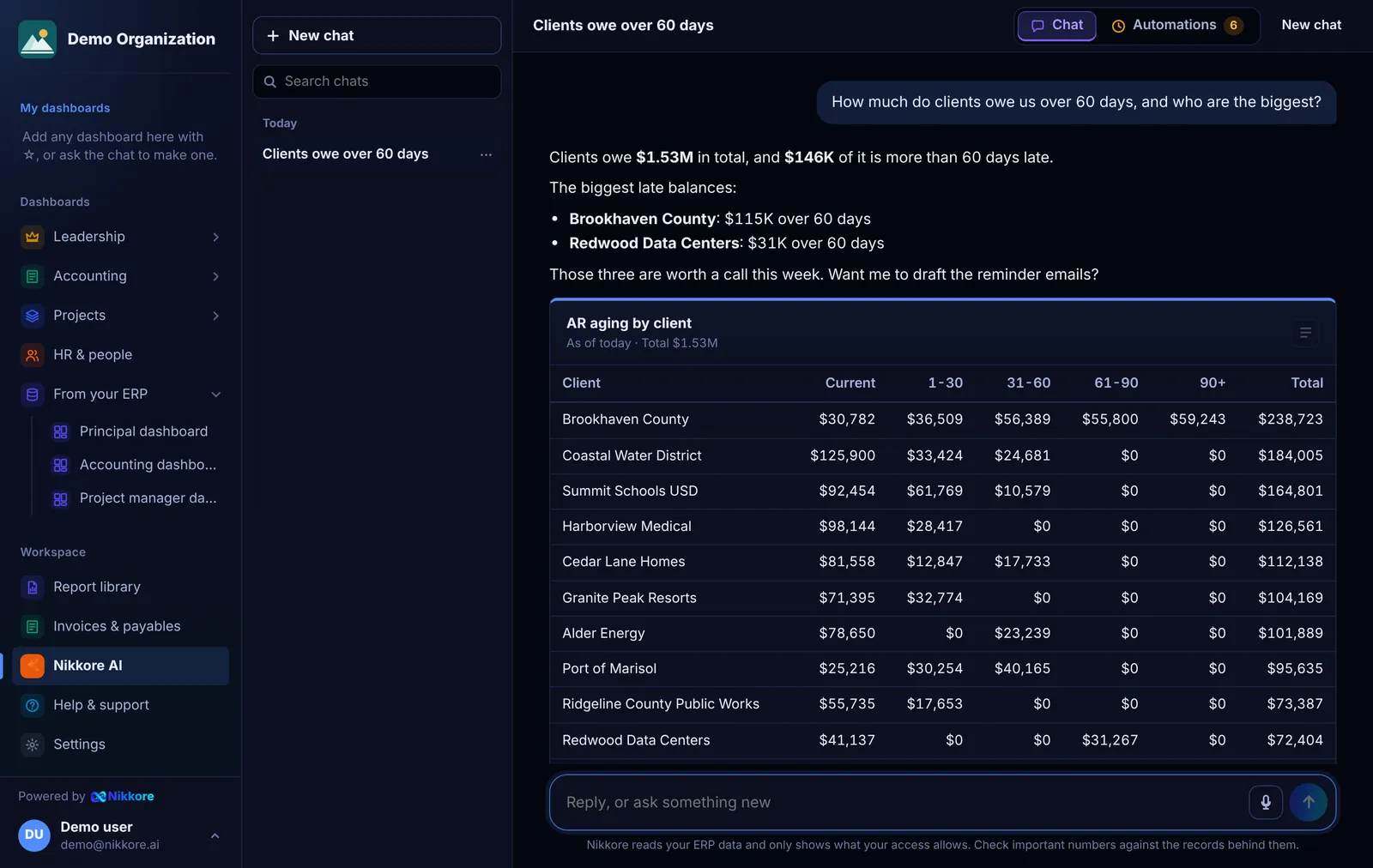
- What's behind it: the few numbers that explain it, such as the clients or projects driving it.
- Worth watching: anything related you'd want to know, if there is something.
Names in an answer link to the right page in Dashmor, like a client's open invoices.
Good questions to try
- What needs attention?
- How much do clients owe us over 60 days, and who are the biggest?
- Status of 25-147 (any project number or name)
- Which active projects are losing money?
- What's our unbilled WIP and which projects should we invoice first?
- Who had the lowest utilization over the last 3 months?
- Build me a dashboard for the Monday collections meeting
Do more from the chat
When Dashmor builds a dashboard in the chat, it appears right in the answer with buttons to:
- Pin it to your sidebar
- Share it with a team or with people in your firm
- Email me a copy now
- Every morning: email it on a schedule you pick, with an optional Excel file
You can also just type it: "Share this with the Accounting team", "Send me this every morning at 7", "What reports am I getting?" or "Stop the Monday report". Dashmor only does what your own access allows.
Investigate a project, client or person
Type Investigate and a project, client or person (for example Investigate 25-124 City Pump Station), or select Investigate on a project, an unpaid invoice or an item in What needs attention. Dashmor pulls the numbers, reads what people wrote on their timesheet lines to find the why, and answers in three parts: What's going on, Why, and What to do as a 30/60/90-day plan with who should do it. It saves the findings as a small dashboard titled Investigation: … that you can add to My dashboards. It only uses data you're allowed to see, and if the data can't show a cause, it tells you what to check.
How answers stay accurate
Dashmor's AI chooses which standard calculations to run; it never writes its own database queries or does its own math. Open How this was calculated under any answer to see exactly which calculation and filters were used.
AI settings
Admins choose the AI provider in Settings › AI analyst. Without an AI key, Dashmor still answers common questions by matching them to standard calculations. You can also use your firm's own Anthropic or OpenAI key.
Make a dashboard in the chat
Ask for it the way you'd say it: "Create a dashboard for me as a project manager", "Make me a collections dashboard for Brookhaven County". Dashmor builds it right in the chat with your numbers, as a preview only you can see. Select Keep it and it joins your menu under Your dashboards, or Not this one to drop it. Pinning, sharing or emailing it also keeps it.
To change a dashboard you already have, say so: "Add DSO to the Accounting dashboard", "Remove consultant bills from my Project manager dashboard". Admins can add for everyone or for the Operations team.
Answers appear word by word as Dashmor writes them, then the charts and tables under them.
It asks before it acts
When you ask Dashmor AI to email something or set up an automation for other people, it checks with you first:
- A role or title ("send it to the CFO"): it looks up who has that title in your ERP and tells you who it found. If nobody has it, it says so and lists your active people to pick from. If the person isn't in Dashmor yet, an admin can invite them in People & access.
- A team ("send it to the accounting team"): it lists the people in it, all ticked, so you can untick anyone, or choose the whole team so people who join later get it too.
- When: if you didn't say, it offers a few common times as buttons.
- Someone else? Every list has a search of everyone active.
It shows each step while it works, and when it's done it says Completed: it's ready to use, with the automation drawn as a flow right in the chat.