
Invoices & payables
One place to see what's open, what's late, who it's with and what to do next. Switch between Receivables (AR) and Payables (AP) at the top right.
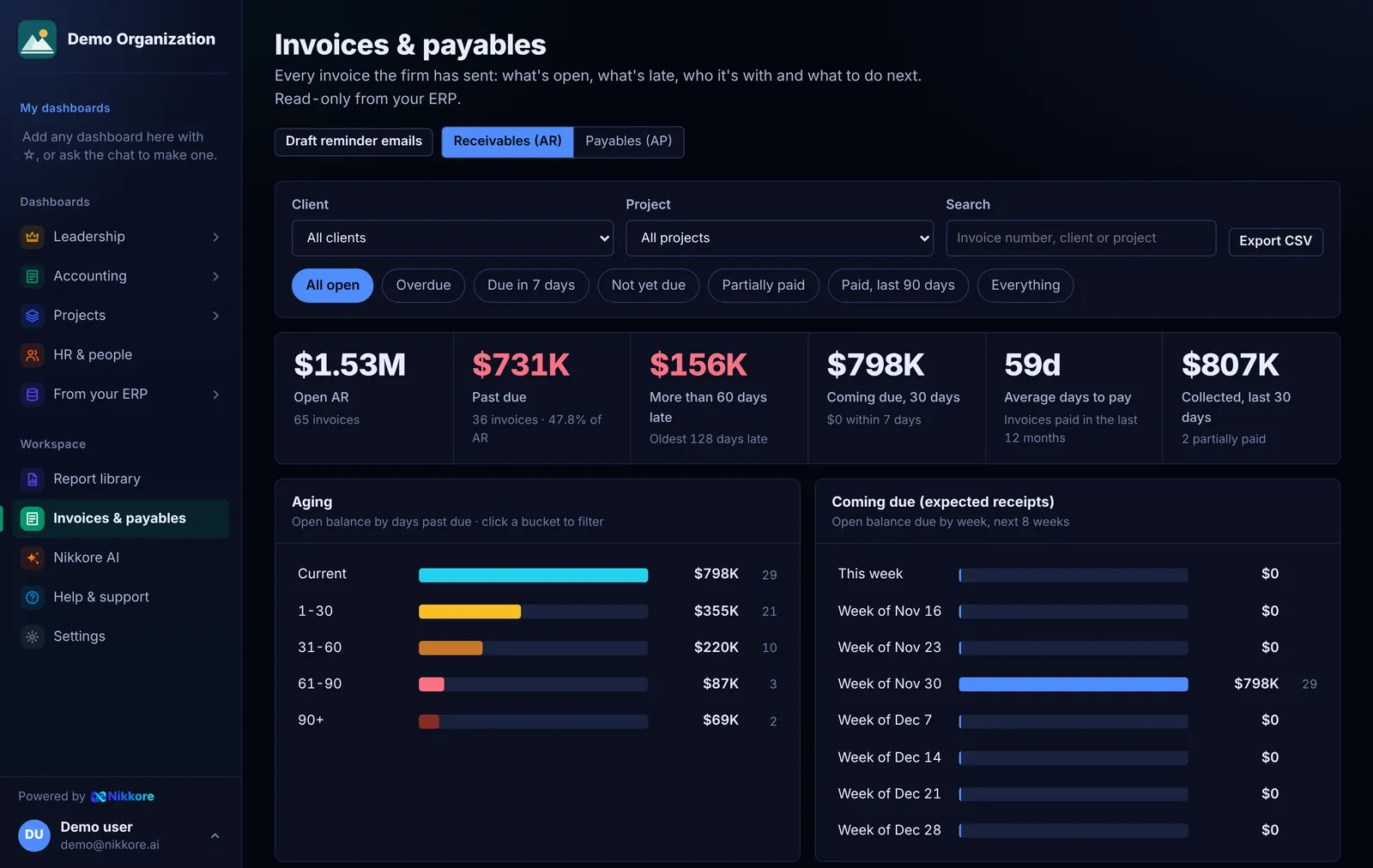
Filtering
- Client / Vendor and Project narrow everything on the page.
- Status chips: All open, Overdue, Due in 7 days, Not yet due, Partially paid, Paid in the last 90 days, Everything.
- Search finds an invoice number, client or project.
- Click an aging bucket, a client or a project row to filter the list below. Click again to clear it.
What each panel tells you
- Top numbers: open balance, past due, more than 60 days late, coming due in 30 days, average days to pay, and collected in the last 30 days.
- Aging: open balance by days past due.
- Coming due: expected receipts (or planned payments) by week for the next 8 weeks.
- By client: open and past-due balances, average days to pay, and how often each client paid late in the last 12 months.
- By project: open AR next to work that hasn't been invoiced yet.
The next-action column
Each open invoice gets a suggested step based on how late it is:
| Status | Suggested action |
|---|---|
| Due within 7 days | Courtesy reminder |
| 1–30 days late | First past-due reminder |
| 31–60 days late | Call the client's AP contact |
| 61–90 days late | Escalate to the PM or principal |
| 90+ days late | Final notice; consider holding work |
Automated reminder emails based on these rules are on the roadmap.
Payables
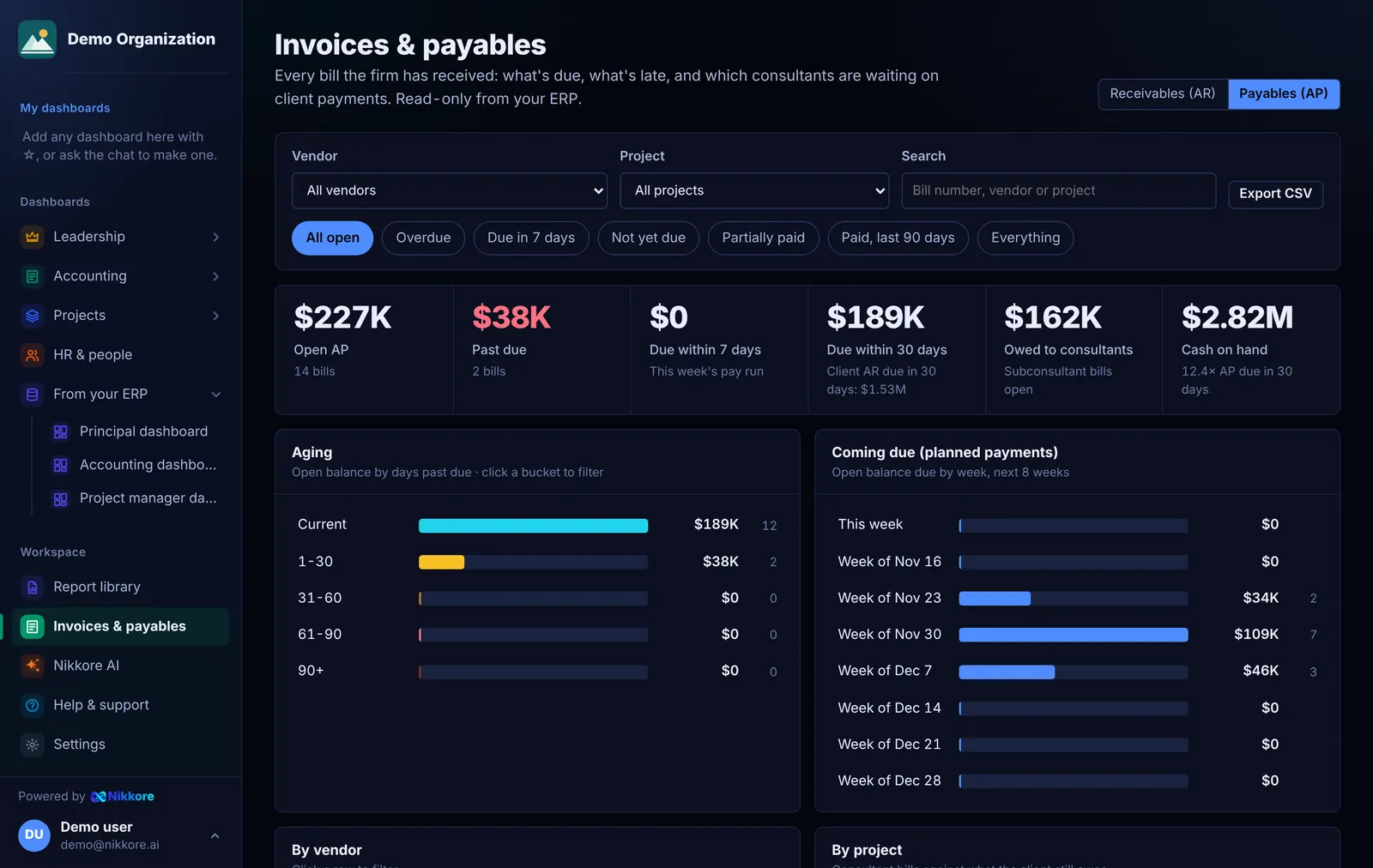
The AP view shows bills by vendor and project, what's due in this week's pay run, and consultant bills next to what the client still owes on the same project, which makes pay-when-paid decisions easier.
Where an invoice stands
Select any invoice or bill in the list to see its journey: Billed → Due → Paid (for bills, Received → Due → Paid). The line fills in up to where it stands today and a marker glides there. It's blue while it's on time, amber up to 30 days late and red after that, and green once it's paid. Underneath, one line says what's going on, for example "$17,272 still owed, 54 days past the Sep 4 due date. Next: call the client's AP contact", or how long a paid invoice took. Select it again to close it.
Under an unpaid invoice, Investigate (the client's name) asks Dashmor how that client pays, what they owe and on which projects, with a plan to collect.