
Edit dashboards and versions
Every dashboard can be changed, including the standard ones, and every change is kept as a version you can return to.
Edit a dashboard
Select Customize › Change it myself at the top of a dashboard. The dashboard opens with an edit panel on the right. Nothing changes for your team until you save.
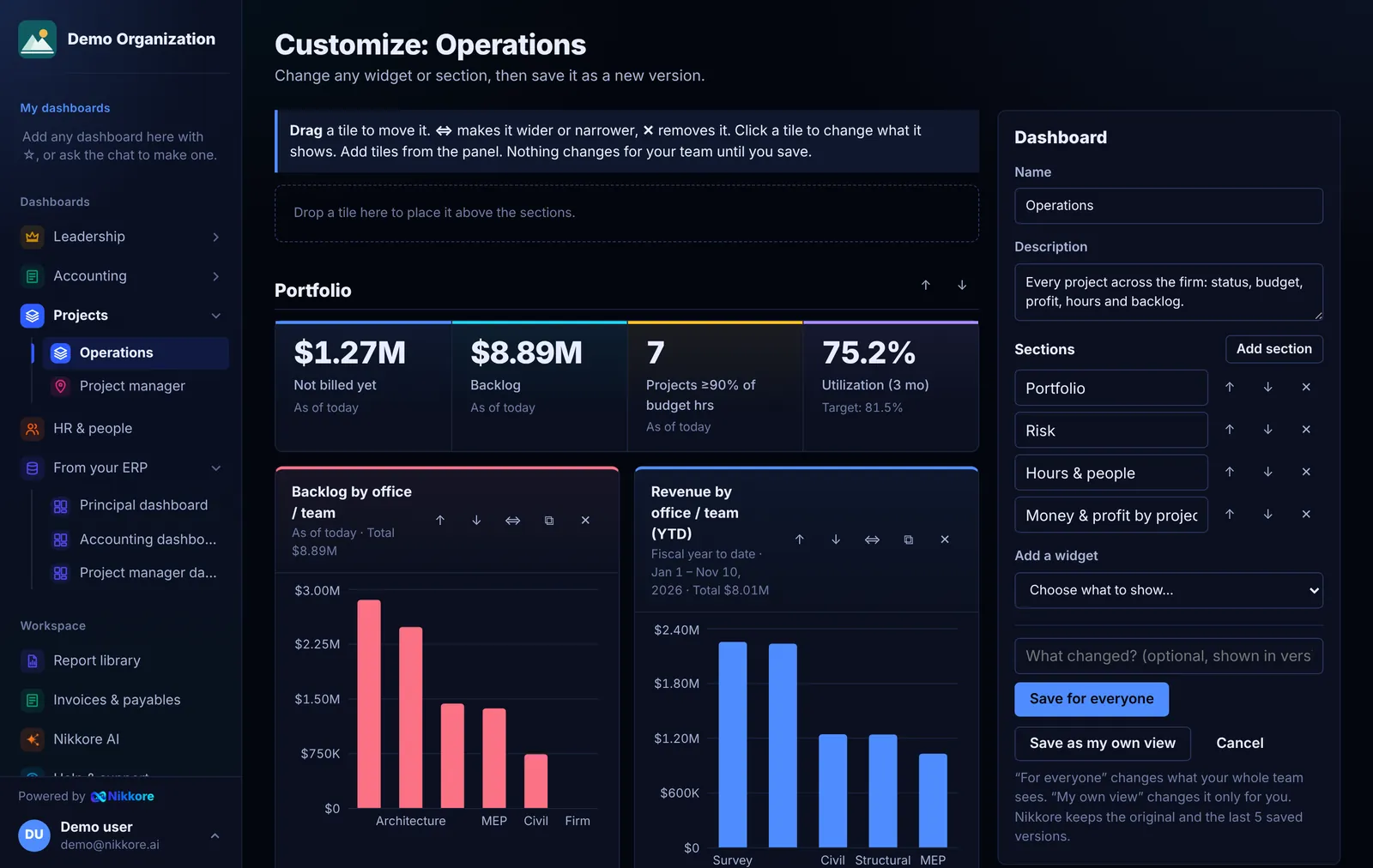
Click any widget to change it:
| Setting | What it does |
|---|---|
| Title | The heading on the panel |
| Shows | Which finance metric it displays (revenue, AR aging, utilization…) |
| Display as | Number, bars, stacked bars, trend line, donut or table |
| Width | A quarter, half, three quarters or the full width of the screen |
| Height | Short, medium or tall charts |
| Color | The color the panel and its chart lead with |
| Period | This month, QTD, YTD, last 12 months and more |
| Break down by | Client, project, employee, office, month… where the metric supports it |
| Rows to show | How many rows a table or bar chart lists |
| Filter | Limit it to one client, project or employee |
The small buttons on each widget move it earlier or later, duplicate it, or remove it.
Sections
Sections group widgets under a heading, such as Cash or Projects. In the edit panel (with no widget selected):
- Add section, rename it, and move it up or down.
- Choose a widget's Section to move it there.
- Removing a section keeps its widgets; they move to the top.
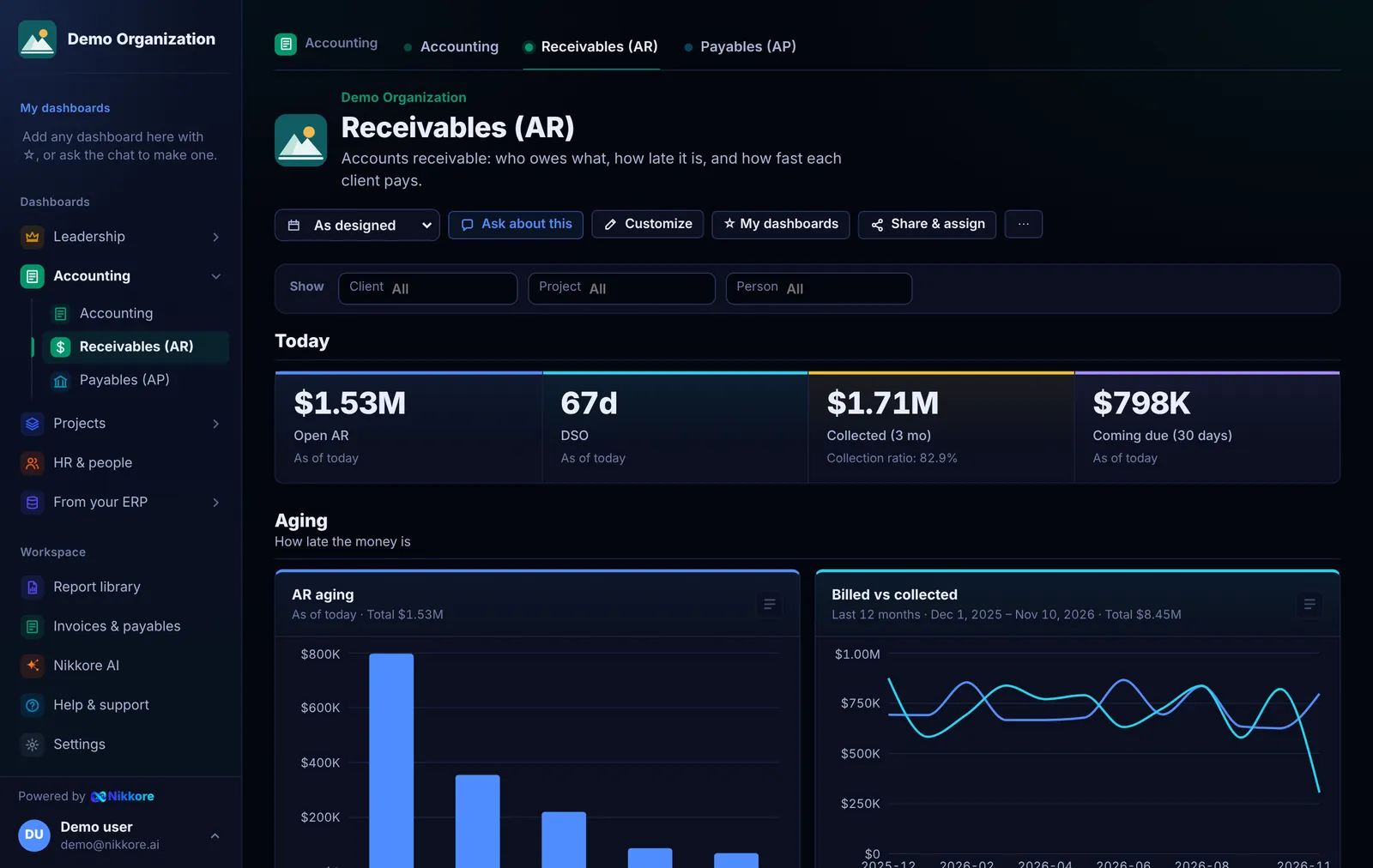
Save as a new version
Add an optional note ("Moved collections first for the Monday meeting") and select Save as new version. Everyone who can see the dashboard now sees the new version.
Redesign with AI, with a preview first
Select Customize › Redesign with AI. While it works (usually 20 to 40 seconds) you see each step. You can redesign the whole dashboard or only one section, and tell the AI what to focus on.
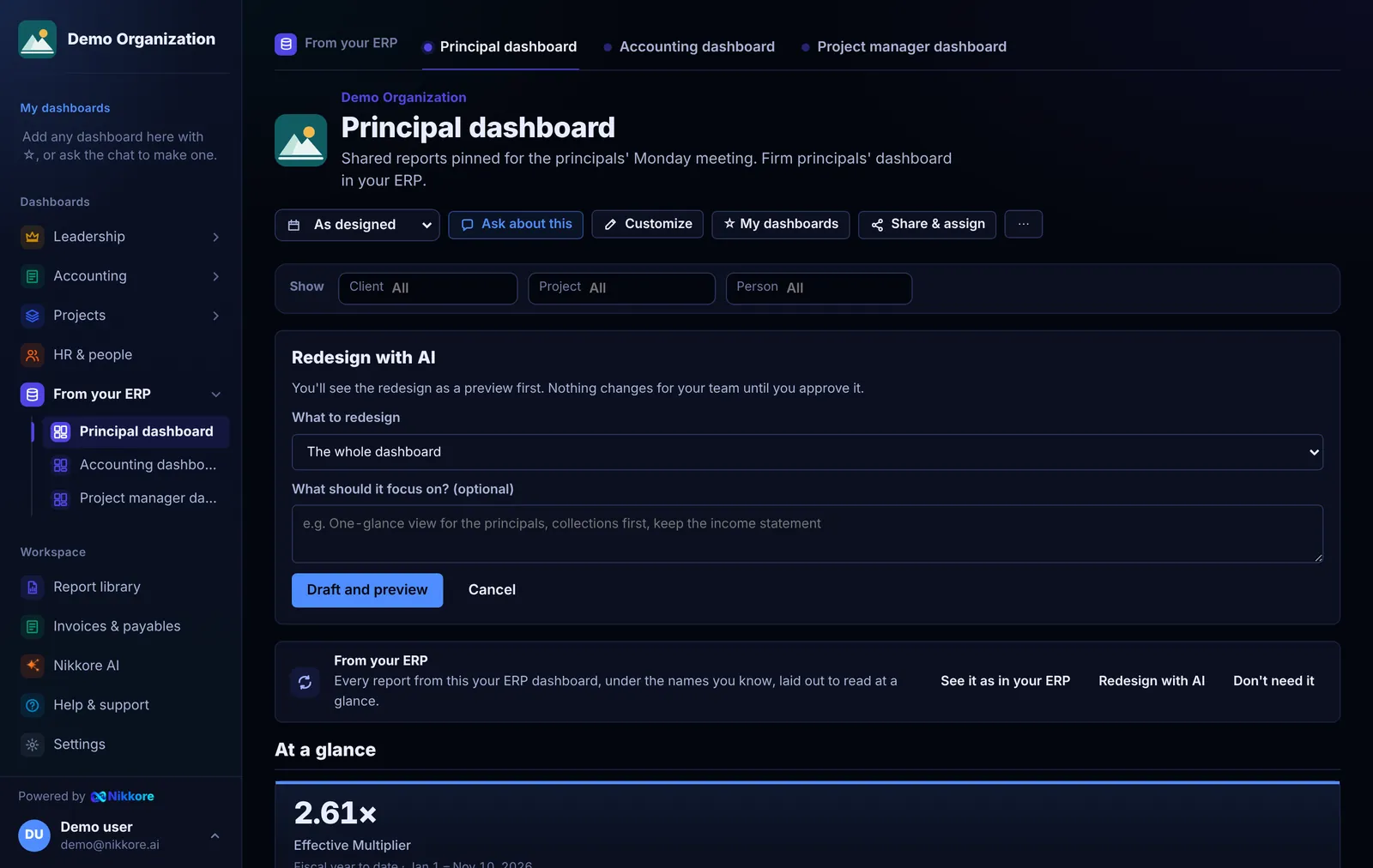
Dashmor opens the redesign as a preview right away. It isn't visible to your team yet.
From the preview you can:
- switch between the AI's options;
- Compare side by side with the version in use;
- Approve and use it;
- Adjust before approving: open it in the editor, change anything, then save;
- Discard it.
Version history
Select Versions to see the original plus the last five saved versions, and any AI redesigns waiting for review. Preview any version, and Use this version to switch back. Older versions beyond five are removed automatically; the original is always kept.
Who can edit
Owners and admins can edit everything. Members can edit dashboards shared with the firm and their own, unless an admin has turned off Edit dashboards for them. Viewers can't edit. See People & access.